
Search result
Front/Top panel
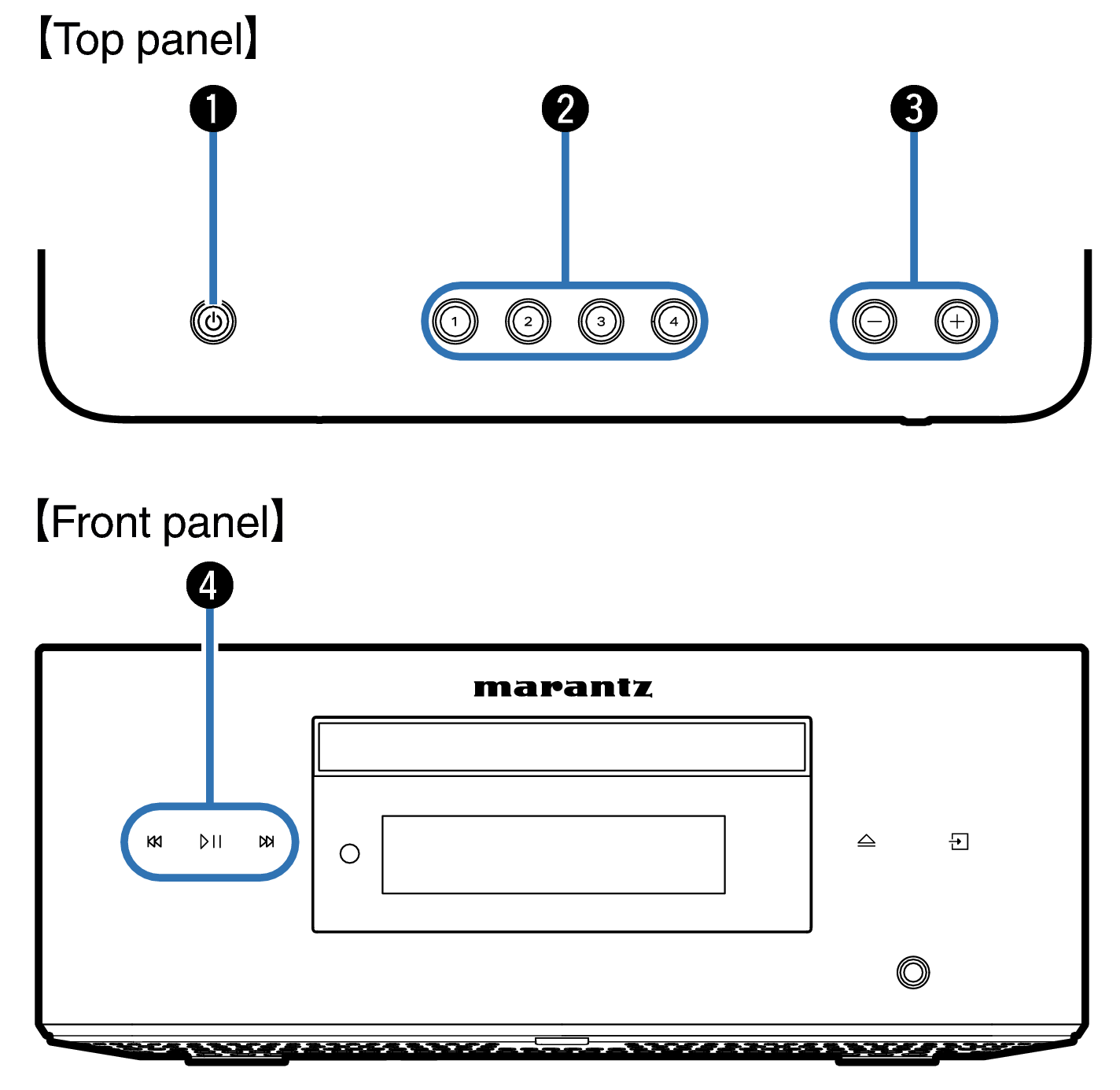
Power (  ) button
This turns the power on/off (standby). link
Power indicator
This is lit as follows according to the power status:
White: Power on
Off: Standby
Smart Select buttons (1 – 4)
These call up settings registered to each button, such as input source, volume level and audio related settings. link
Volume buttons ( 
 )
)
Adjusts the volume. link
System keys
These perform playback related operations.
Play/Pause key (  )
)
Press this key to pause during playback. If pressed while paused or stopped, resumes playback.
Forward-skip key (  )
)
Press this key during playback to play the next track.
Reverse-skip key (  )
)
Press this key during playback to restart the current track or play the previous track.
Depending on the input source and online service, the operation cannot be performed.
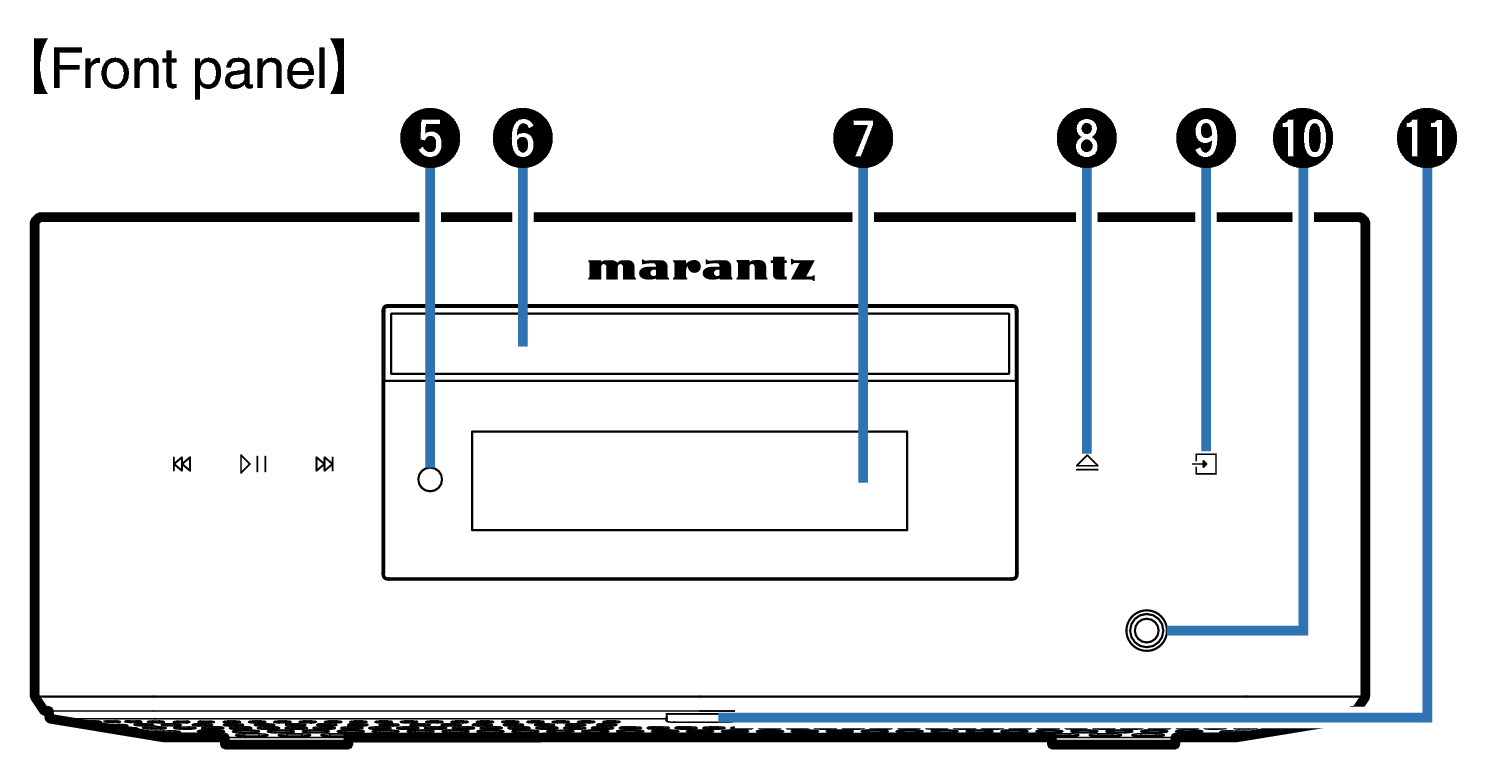
Remote control sensor
This receives signals from the remote control unit. link
Disc tray
Used to insert a disc. link
Display
This displays various pieces of information.
Disc tray open/close key (  )
)
Opens and closes the disc tray. link
Input source switching key (  )
)
This selects the input source. link
Headphones jack
Used to connect headphones.
When the headphones are plugged into this jack, audio will no longer be output from the speaker terminals and AUDIO OUT connectors (including the SUBWOOFER connector).
NOTE
To prevent hearing loss, do not raise the volume level excessively when using headphones.
Status LED
Please refer to the Status LED tablelink for LED color and state meaning.